Getting your data in
Import data from a CSV
Anything you can get into a spreadsheet, you can get into RotoAlpha. Export it as a CSV, upload it, tell RotoAlpha which column is which, and check the preview before it is written.
CSV is the fallback when pasting does not work cleanly, and the better path when your data already lives in a spreadsheet.
What a CSV needs
A CSV is a plain text file with one row per line and commas between the values. Every spreadsheet program exports one: look for Save As or Export and choose CSV.
Two rules:
- Put a header row at the top. RotoAlpha reads your headers to guess which column is which, so a file with headers saves you most of the matching step.
- One thing per row. One pick per row for a draft, one player per row for projections.
Your column names do not have to match ours. Anything unrecognized is simply left unassigned for you to set by hand.
Importing draft results
Open Draft Results in the left sidebar, choose Import Results…, pick Upload a file, and select your file. The switch there also holds Copy & paste, for results you copy off a page, and Type it in, for picks you record by hand.
The columns RotoAlpha can use are:
| Column | Required | What it holds |
|---|---|---|
| Player | Yes | The player's name |
| Manager | Yes | The fantasy manager who drafted them |
| Price | Auction only | What they went for |
| Team | No | The player's real-life team |
| Position | No | The player's position |
| Round | No | Draft round |
| Overall Pick | No | Overall pick number |
| Pick Time | No | When the pick was made |
| Keeper Price | No | The price a kept player was carried at |
| Kept By | No | The manager who kept them |
A file needs at least a player column and a manager column. An auction draft needs a price as well, unless you tick the box saying this source never recorded prices.
If you map neither Round nor Overall Pick, picks are numbered in file order, so make sure the file is in draft order before you upload it.
The steps that follow
An uploaded file lands on the same walk a paste does: Columns, Match Managers, Match Players, Picks, named across the top, one question each. Nothing is written until the last one.
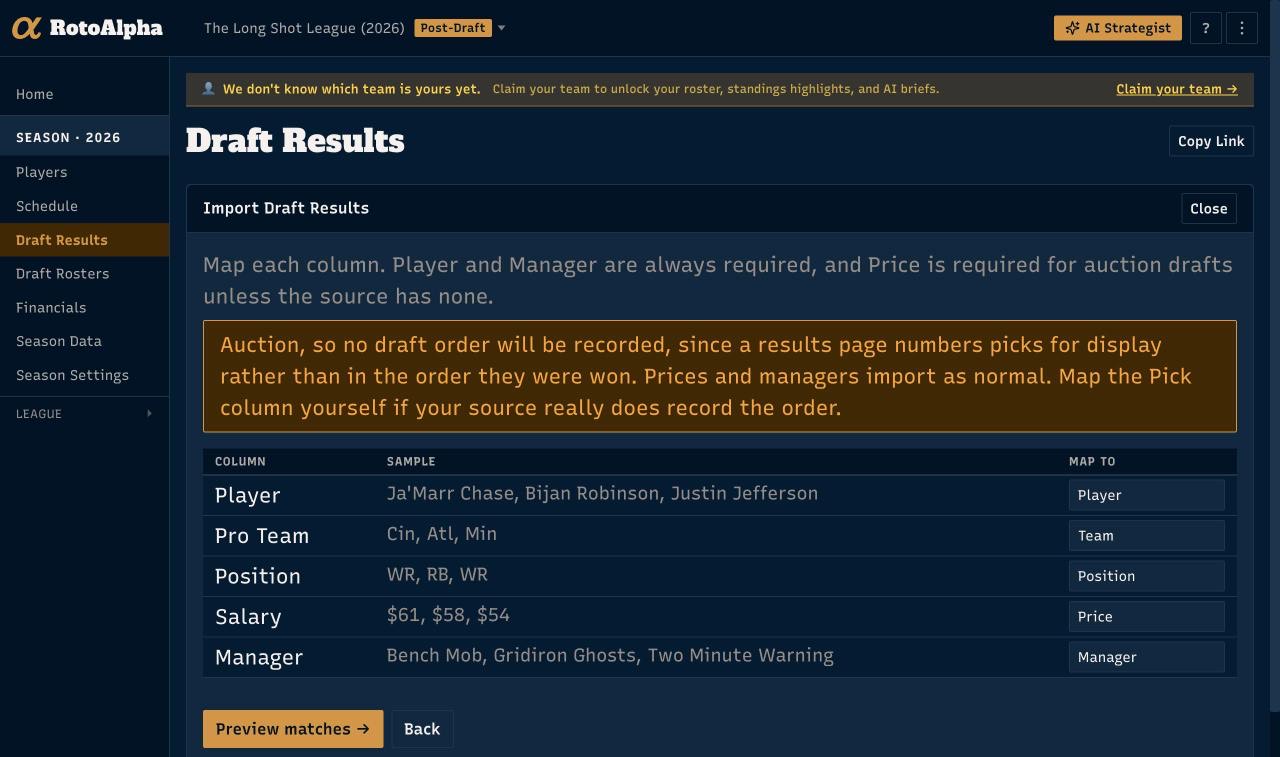
Columns. RotoAlpha shows what it read and what it made of each column, and you correct anything it got wrong. Common header names are recognized automatically, including several spellings of the same idea (manager, owner, franchise, fantasy team). Anything you do not want imported can be left as skipped. The mapping table sits folded away when the guess looks right and opens itself when it does not.
Match Managers. Each team name in the file, matched to a manager in your league. A name left unmatched skips every pick belonging to it, so this is the step worth slowing down on. Suggested matches can be accepted one at a time or all at once, and a name you fix here fixes every pick that carries it.
Match Players. Every row with the player it matched: a sure match, a close match, or no match. The filter opens on the rows that need you.
Watch for these here:
- Close matches. A name that nearly matched, shown with how close. Check them, then accept them individually or all at once.
- Unmatched rows. Pick a player by hand in the Player column or the row is left out.
- New players. Anyone the season does not know yet is created. The count is shown before you confirm.
- A player's team looks wrong. An export of an old draft usually carries the player's current real-life team rather than the team they were on that year. This is normal and does not affect anything RotoAlpha computes.
Picks. The draft as it will land, with a line saying how many rows will import. Confirm here, and the picks are written.
Importing projections
Projections have their own CSV import with its own column matching, because the interesting columns there are stats and dollar values rather than picks. See upload your own projections.
Fixing things afterwards
Nothing here is one-way. Draft picks can be edited on the Draft page, managers under Settings, and you can re-run an import: players that already have a recorded pick are left alone unless you explicitly ask for them to be re-imported.
Rows the file was missing do not need a second file. Add a pick, at the foot of the results ledger, takes them one at a time.
More in Getting your data in
- Paste your draft resultsCopy the draft recap from wherever your league drafted, paste it in, and check the preview.
- Type in your draft resultsRecord picks by hand, one row at a time, when there is nothing to copy and no file to upload.
- Upload your own projectionsBring your own numbers, and understand what the active projection set changes.
- Import your league's historyAdd past seasons one year at a time, and get the same manager recognized across all of them.